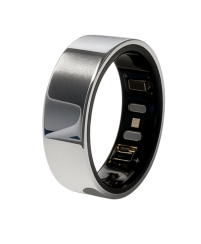
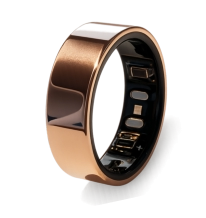
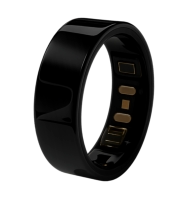
The battery lasts up to 7 days with regular usage, depending on features like heart rate monitoring and notifications.
Is the smart ring waterproof?
⮟
Yes, the ring is water-resistant up to 5ATM, making it safe for swimming, showering, and handwashing.
Do I need to wear it all the time?
⮟
While it's not necessary to wear it 24/7, for continuous health tracking and notifications, we recommend keeping it on during most activities.
Does it track workouts in real-time?
⮟
Yes, the ring tracks your workouts in real-time, including steps, calories burned, heart rate, and more.
Can the smart ring help with women's health?
⮟
Absolutely! The ring tracks various health metrics, such as menstrual cycle, sleep patterns, and overall well-being, to support women's health.
How Do I Sync the Vitality Plus Smart Ring with My Phone?
⮟
Syncing your Vitality Plus Ring is a simple, four-step process. The ring requires a Bluetooth connection and the official Vitality Plus App to connect and transfer your biometric data.
Important: Your ring needs to be paired once when you first set it up. After that, it will automatically sync when you open the app (as long as Bluetooth is enabled).
Step-by-Step Syncing Guide
Step 1: Download and Install the App
- iOS Users: Download the Vitality Plus App from the Apple App Store.
- Android Users: Download the Vitality Plus App from the Google Play Store.
Step 2: Ensure Phone and Ring Readiness
Before starting the pairing process, please ensure the following:
1. Bluetooth is ON: Verify that Bluetooth is enabled in your phone's settings.
2. Ring is Charged: Ensure your Vitality Plus Ring has sufficient battery charge (place it on its charging box if needed).
3. App is Open: Open the Vitality Plus App on your phone.
Step 3: Create Account and Initiate Pairing
1. Sign Up/Log In: Follow the on-screen instructions to create your profile or log in to your existing BBG Vitality Plus account.
2. Start Pairing: Tap "My Profile", select "My Device", and click the "Bind Now" button. Follow the guided setup process.
3. Proximity: Keep your Vitality Plus Ring close to your phone (within a few feet) during the pairing process.
Step 4: Daily Syncing (Automatic Data Transfer)
Once your ring is paired, the data collected overnight or during a sport will automatically sync when you open the app:
- Simply open the Vitality Plus App.
- Ensure your phone's Bluetooth is active.
- The ring will connect, and your sleep, activity, and temperature data will be transferred to your profile, updating your daily scores and insights.
If you experience any issues, please ensure the ring is not too far from your phone and check that the Vitality Plus App has all necessary permissions (Bluetooth, Location) enabled.